Technical Documentation

Token Workflow
This section explains how users create and connect Master Tokens, Strategy Tokens, Send-To Tokens and Signal Tokens, and how these are used for trading automations, strategy execution, and copy-trading.
Create New Algo:
Automation & Token Creation Process
The platform has been updated with a simplified and streamlined workflow for creating automations.
Users will now follow one unified process that automatically creates:
- Master Token
- Forex Token
- TradingView Alerts
This ensures easier setup, fewer steps, and an intuitive flow even for non-technical users.

Create a New Automation (Algo)
Once your account setup is completed, navigate to the dashboard and follow these steps:
Step 1: Click on "Create New Algo"
This opens a new popup window where you will configure your automation.
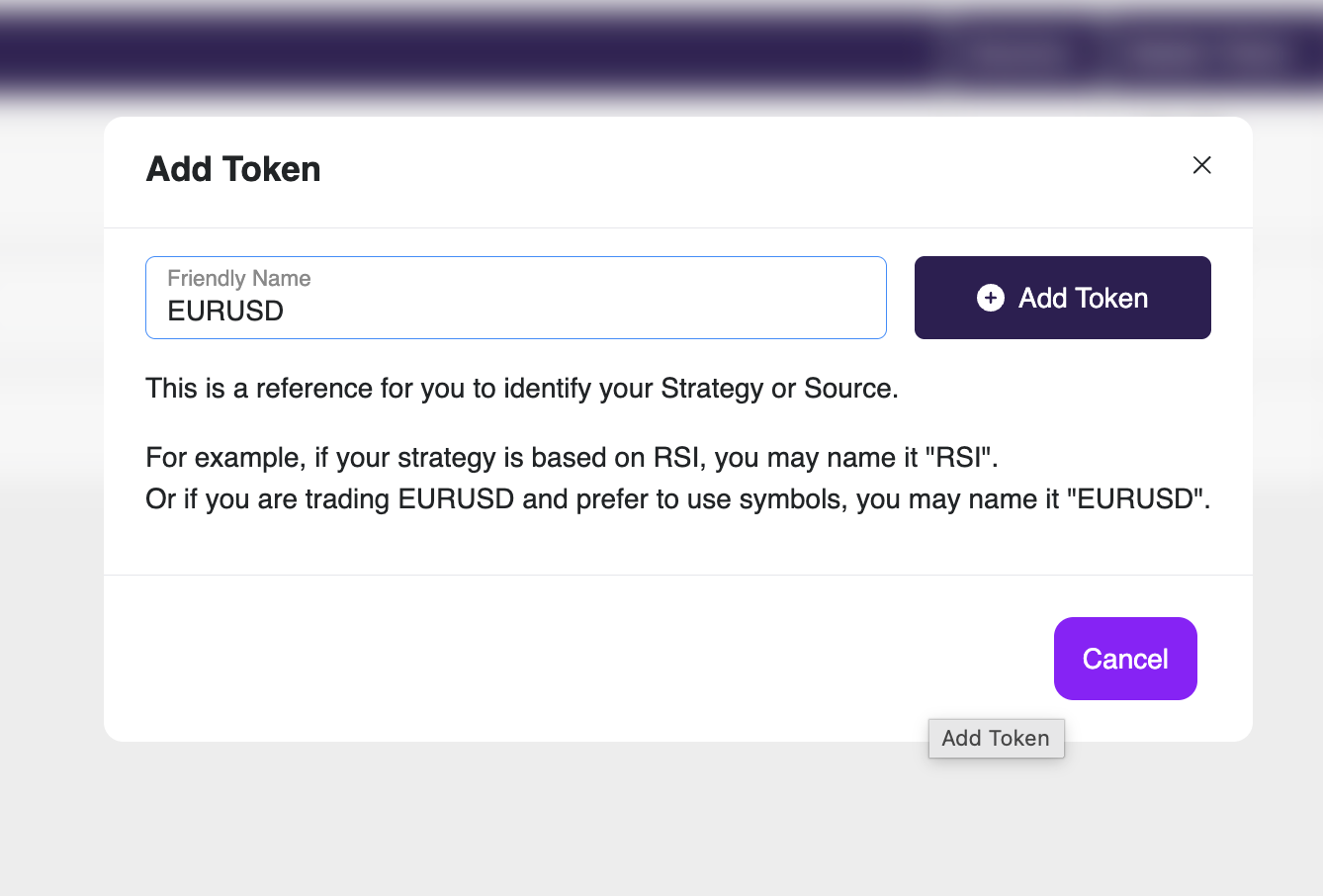
Enter Automation Name (Strategy / Source Reference)
The first field asks you to enter a Name for your automation.
This name helps you identify the strategy or source later.
Examples:
- RSI — if the strategy uses Relative Strength Index
- MACD — for a MACD-based strategy
- GOLD — if your alerts are for XAUUSD
- EURUSD — for currency pair trading
- Breakout Strategy — for custom logic
- My TV Alerts Bot — if it's purely for TradingView alerts
This name is only a label for your reference.
Click Next after entering the name.
Select Your Source (Alert Input Method)
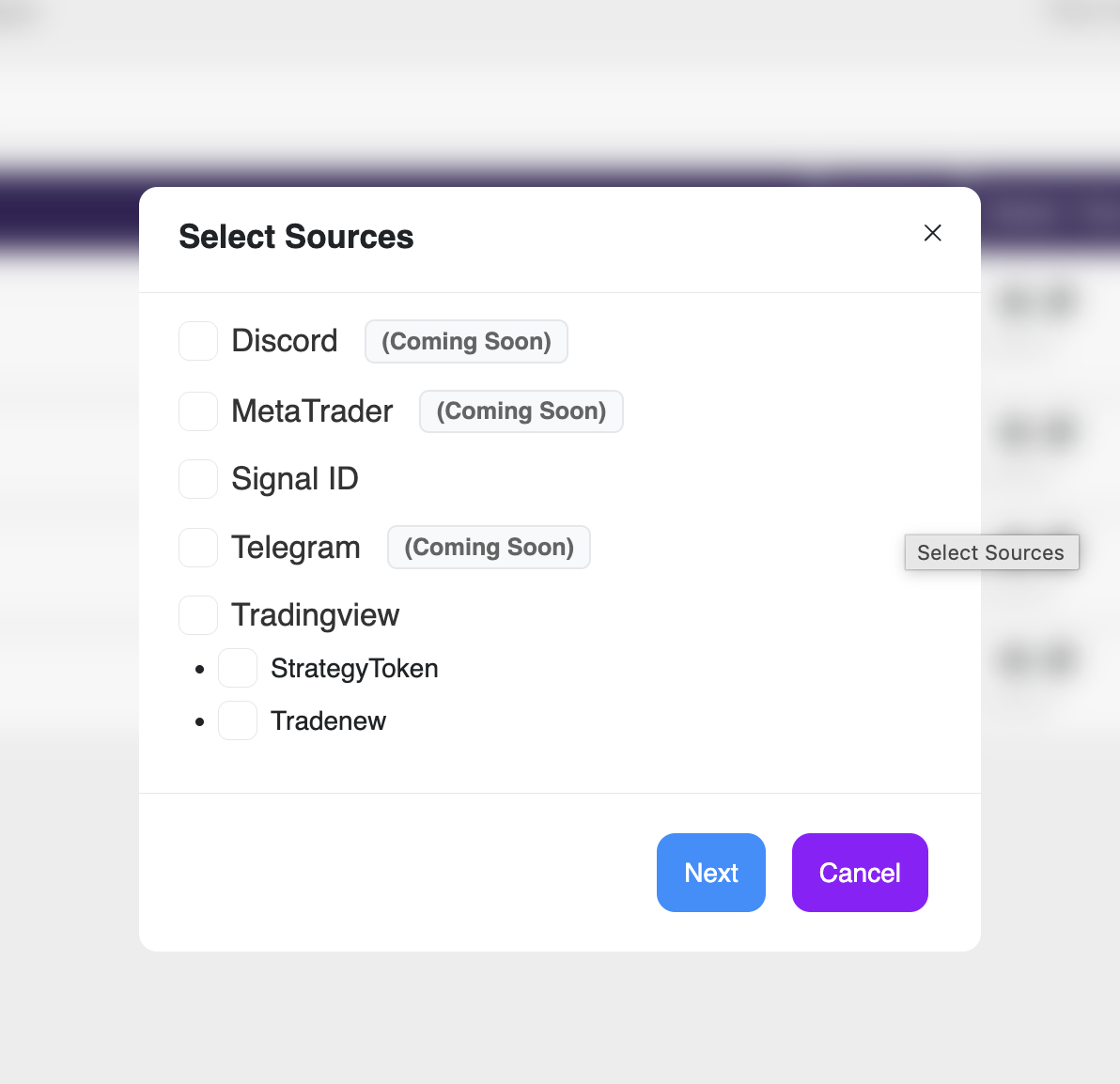
You will now select the Source for your automation.
Available Source Options:
Source Type Discord(Coming Soon), MetaTrader(Coming Soon), Signal ID(Active), Telegram(Coming Soon), TradingView(Active)
Choose TradingView and click Next.
Select Send-To Targets (Execution Output)
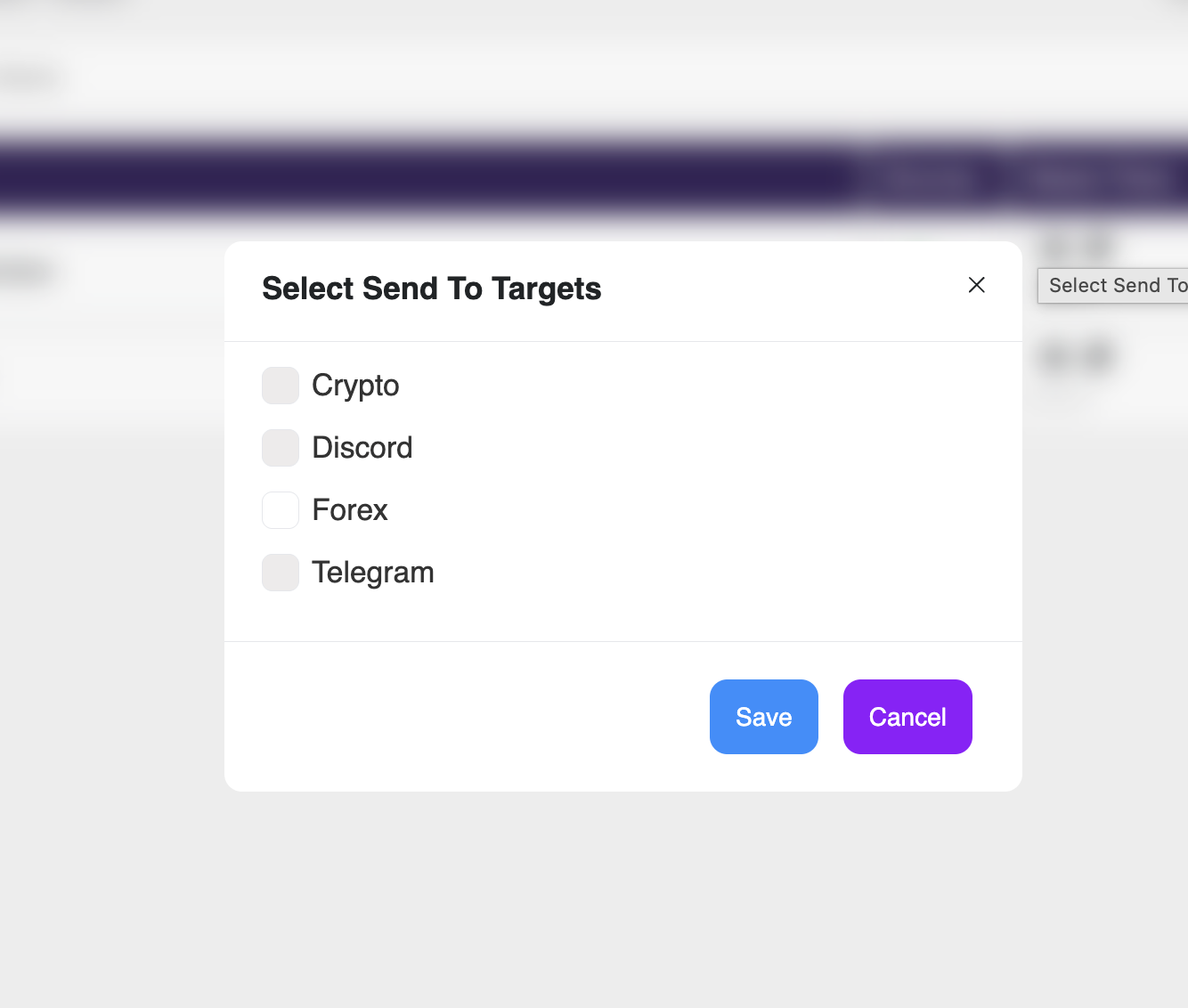
Next, choose where your strategy should send the executed trades.
Available Send-To Targets:
TargetStatusCryptoComing SoonDiscordComing SoonForexActiveTelegramComing Soon
Currently, only Forex is active.
Select Forex, then click Save.
Auto-Generation of Tokens![]()
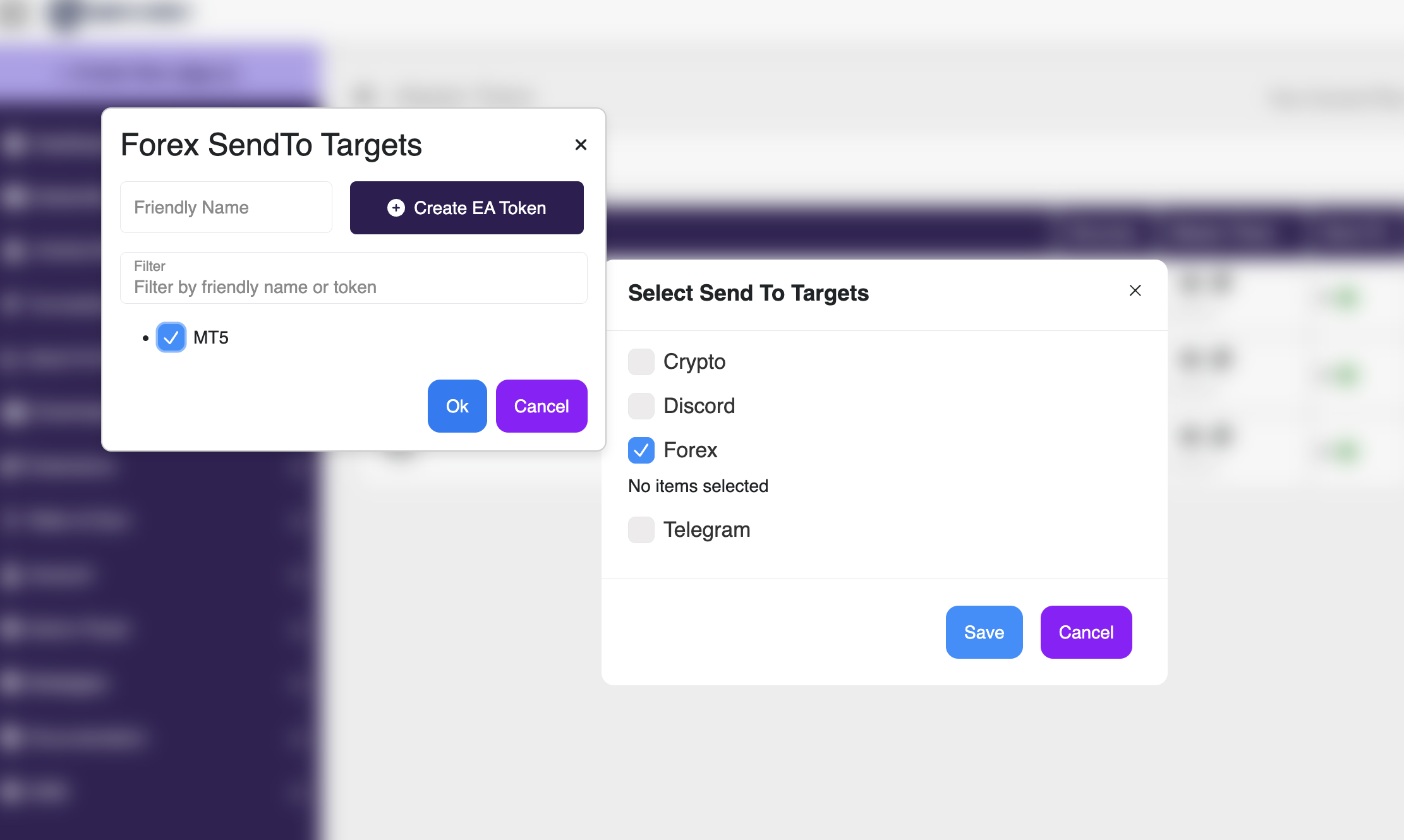
After clicking Save, a new popup opens:
Create EA Token (Forex Send-To Target)
The system now requests:
- Friendly Name (optional)
- And then click "Create EA Token"
You will also see:
- A filter option for searching existing tokens
- Token list categorized under MT5
Once you click OK:
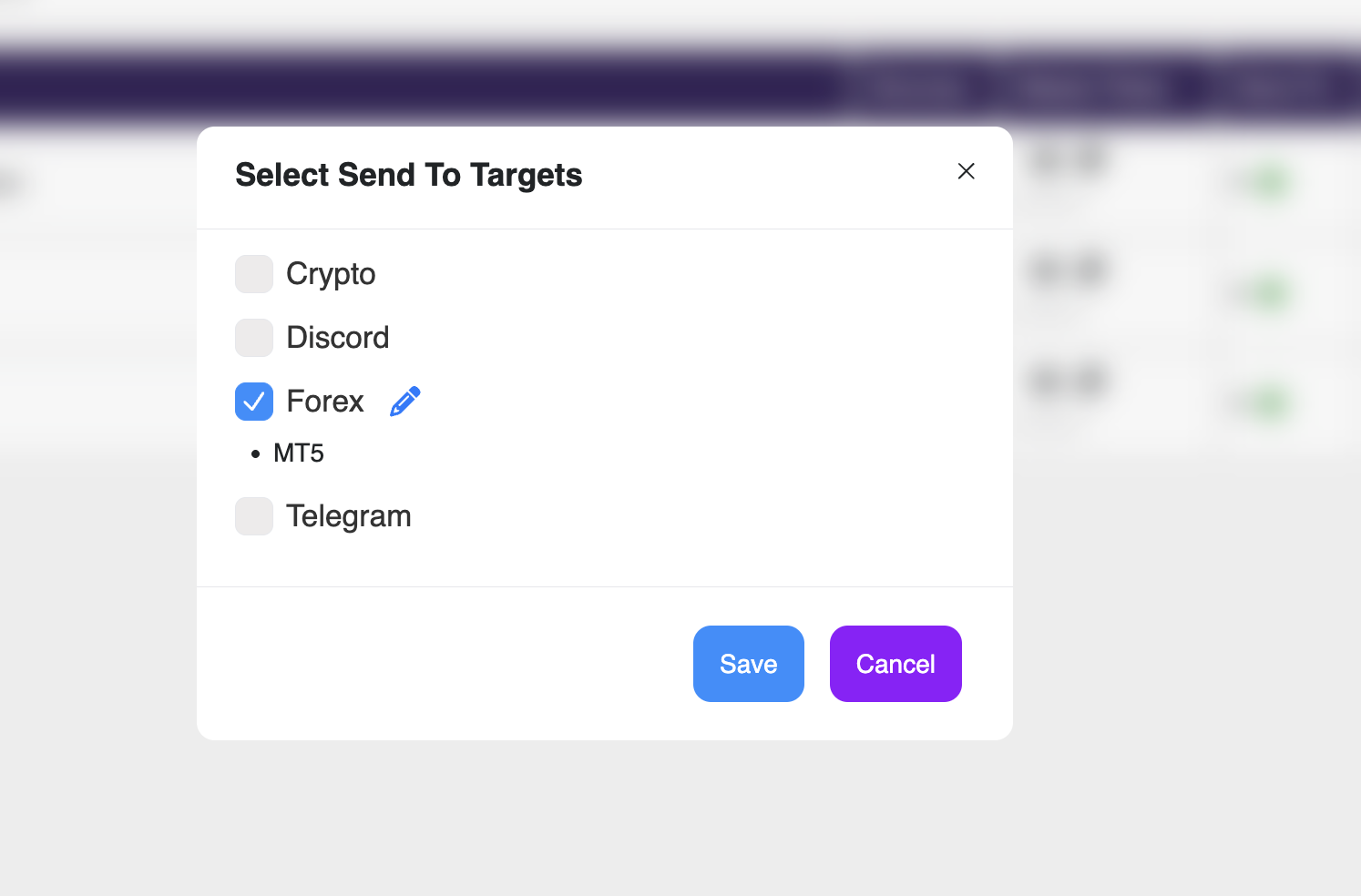
System Automatically Creates Required Tokens
This is the updated part:
What happens automatically:
- Master Token is created
- EA Token (Forex token) is created
- These tokens are automatically linked to your automation
- You can now:
- Use them in TradingView Alerts
- Configure them in MT5 or EA
- Use them for future Strategy configurations
No need to manually create Strategy Tokens → The system handles it.
Using the Tokens
After creation, your token becomes available in:
- TradingView alert webhooks
- MT5 Expert Advisor configuration
- EA setups inside the platform
- Automation overview page
You can always see:
- Token name
- Token type (Source / EA)
- Associated strategy
- Send-to target
- Status

Process Summary
Step 1
Create New Algo(Opens configuration popup)
Step 2
Enter Automation Name(Labels your strategy)
Step 3
Select Source (TradingView, MT, Discord, Telegram) currennly Trading View Active
Step 4
Create Send-To Target (Required for Forex)
Step 5
Create EA Tokens
System auto-creates Master + EA token
Step 6
Use Token (TradingView / MT5 / EA configurations)
Step 7
Go to Extensions → Signals
- Create Signal Token
- Click Configure
- Map selected Strategy Tokens
Share Signal Token with users
- They subscribe
- System auto executes trades (Copy-Trading)
Master Token
What is a Master Token?
A Master Token is the primary authorization token that allows your Charts Connect account to connect and receive signals from different Source Platforms , such as:
- Discord
- MetaTrader
- Signal ID
- Telegram
- TradingView
This is the first step needed before doing anything else on the platform.

How to Create a Master Token
- Go to Dashboard → Connections → Master Tokens .
- Click Master Token.
- Enter a Friendly Name , and click Add Token to create a new Master Token.
- Once a new Master Token is created, select the Sources you want to receive signals from (e.g., TradingView or MetaTrader).
- Click Send To to select where you want to send those signals to.
- Once all the settings are correct, click Save .
Select “Send To” Targets
After creating a Master Token, you are asked to select Targets where the signals will be sent.
Available Targets include:
- Crypto
- Discord
- Forex
- Telegram
- ( More coming soon )
Current Status
Only Forex is currently enabled as a Send-To target.

Creating an EA Token(For Forex)
When you select Forex as the Send-To Target and click Enable , the system will ask you to Create an EA Token .
Why EA Token?
The EA Token is required for:
- Connecting MetaTrader (MT4/MT5)
- Executing Forex trades automatically
- Processing signals into buy/sell orders
Process to Create EA Token
- Click Enable Forex
- System prompts: Create EA Token
- Enter token name, select your MetaTrader account
- Save
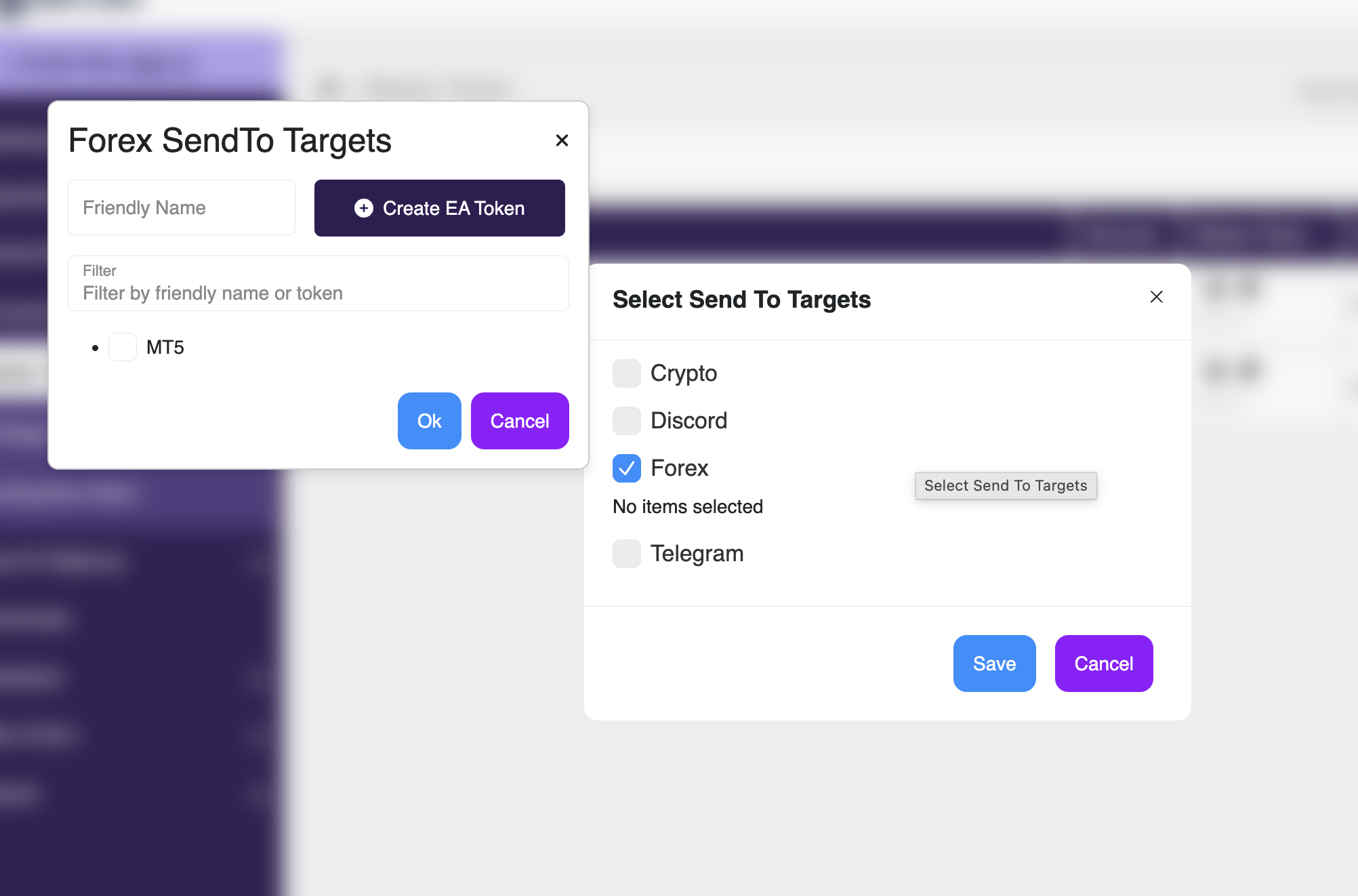
Now your account is ready to signals and executes trades on Forex.
Strategy Token
Once the Master Token and EA Token are set up, users can create Strategy Tokens .
These are required to build & manage trading strategies.
What is a Strategy Token?
A Strategy Token defines how the system should interpret your chart signals (e.g., TradingView alerts) and convert them into actionable trading strategies.
Each token represents one strategy logic , but you can create unlimited tokens.
Example:
- Strategy Token 1 → MACD Strategy
- Strategy Token 2 → EMA Crossover Strategy
- Strategy Token 3 → RSI Breakout Strategy
All these tokens can be mapped independently.
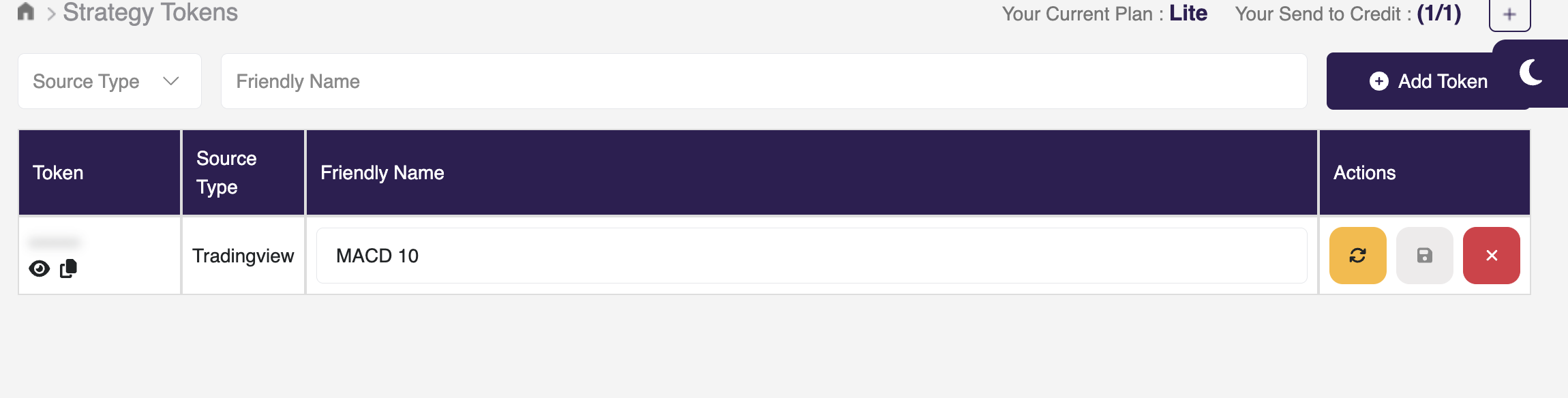
How to Create a Strategy Token
- Go to Strategy → Create Strategy Token
- Select Source Type :
- MetaTrader
- TradingView
- Fill in strategy details
- Click Create Token
Token created successfully
This token can now be used inside Extensions - Signals
Signal
Extensions → Signals
This module is used to create Signal Tokens , which are essential for copy-trading & signal broadcasting.
Create Signal Tokens
- Go to Extensions → Signals
- Click Create Signal Token
- Provide a token name
- Save
This creates a Signal Token which will be used for broadcasting strategies or allowing users to copy-trade.

Configure Signals
Once a Signal Token is created:
- Click on Configure
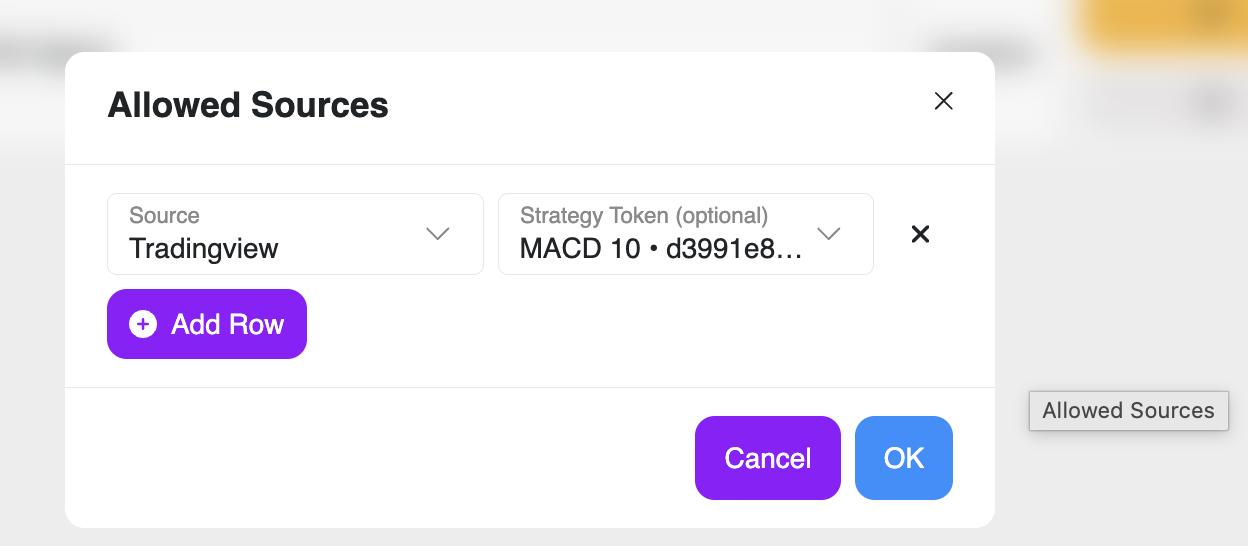
- You will see a list of All Strategy Tokens you created earlier
- Select the strategies that will feed this Signal Token
- Save configuration
What Happens Now?
- All trades generated from the selected Strategy Tokens
- Will now be broadcasted using the Signal Token
Users can subscribe to this token to copy-trade your strategies
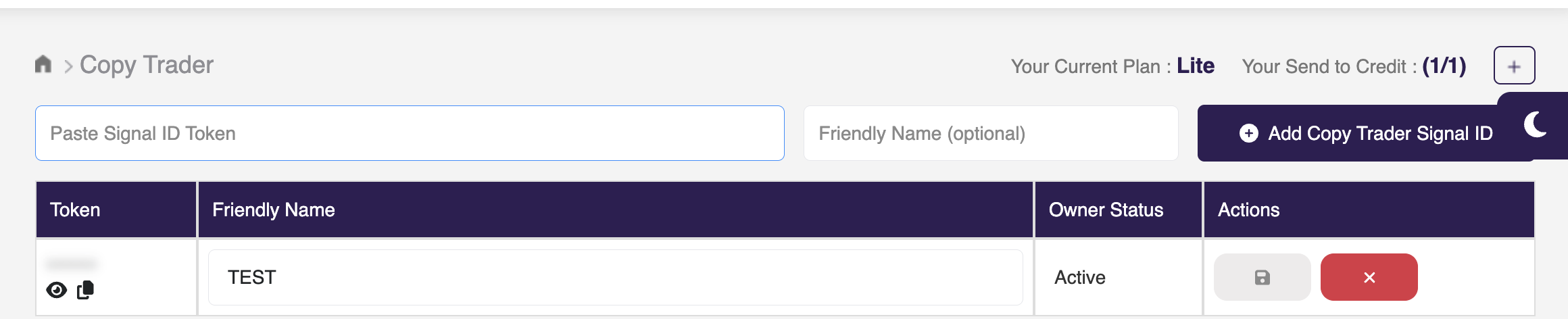
Copy Trader
Using Signal Tokens for Copy Trading
A Signal Token can be shared with followers or community members.
When they subscribe to your token:
- All your configured strategies are copied
- Their accounts will mirror your trades
- Execution is handled automatically by Charts Connect’s trading engine
Use Cases:
- Traders running private communities
- Paid subscription models
- Free public strategies
- Multi-user automated trading groups